

MENU
COMPARE
A new and powerful tool to build your clients' websites with your brand.
Copyright 2025 © SiteBuilderBuilder
All Right Reserved.
VAT 05021040877
CONTACTS
SITE BUILDER BUILDER TUTORIALS
Email : info@sitebuilderbuilder.com
WhatsApp: +39 351 989 1346
How to activate a Pro site from the CRM
Check out the guides to set up your site builder, activate free and professional websites, and manage your clients from the dedicated CRM.

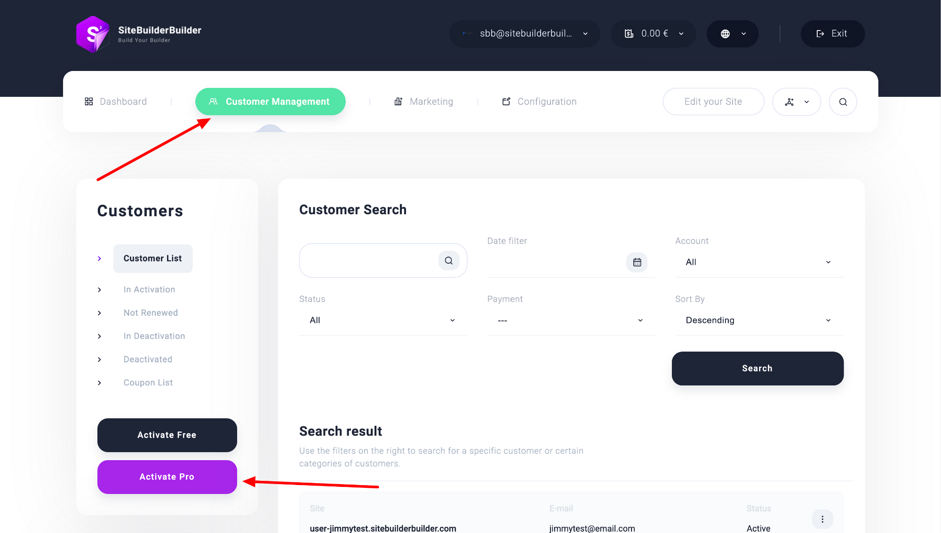
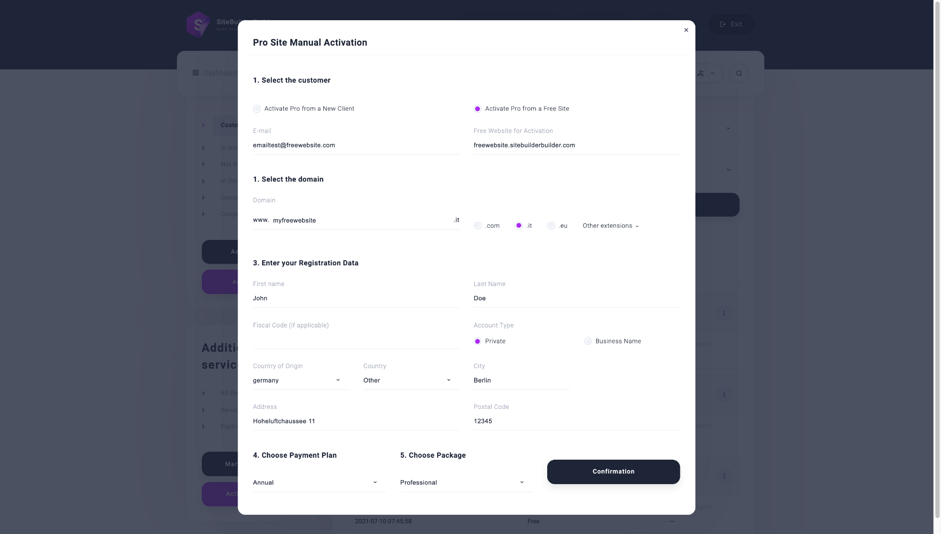


If you want to create a professional site for your client or wish to upgrade a free site you already created with your site builder to Pro, just log in to your CRM and click on “Activate a Pro site”.
Choose the option “Activate the Pro account for a new user” if you want to register a new professional client for the creation of their site. In this case, choose an email address and a password: these will be the credentials your client will use to access the editing area of their website.
Select “Activate the Pro account of an already created free site” if you want to upgrade to Professional a free site you already created with your site builder. In this case, enter the email address you used to register the free site and its address.
Continue by entering the domain name. If the domain is already registered, you can choose to keep it with the current provider and point the DNS to Flazio’s IP address or transfer it by entering the transfer code you’ll need to request from your provider.
Complete the registration with the account holder’s details, as a private individual or company.
Finally, select the type of subscription you want to activate: yearly or monthly.
If you chose to point the DNS, remember to access the domain control panel and set the Record A, Record CNAME, and Record AAAA:
Record A:
Hostname: leave blank (or enter @ if the provider does not allow blank fields)
IP: 35.190.27.135
Record CNAME:
Hostname: www (the final result should be like www.mariorossi.com)
Value: client’s domain name (like mariorossi.com)
Record AAAA:
Hostname: leave blank (or enter @ if the provider does not allow blank fields)
IPv6: 2600:1901:0000:0609:0000:0000:0000:0000
The professional site will be activated in your site builder.
Connect to your site and enter the chosen credentials to manage the new account created.
If you chose to use email via Sitebuilderbuilder but want to keep the domain with the current provider, you should change the MX, CNAME, SRV, and TXT records as shown below:
CNAME Record:
Hostname: mail (the final result should be like mail.mariorossi.com)
Value: mailbuilderbuilder.com
MX Record:
Hostname: leave blank (or enter @ if the provider does not allow blank fields)
Value: mailbuilderbuilder.com
TXT Record:
Hostname: leave blank
Value: "v=spf1 include:_spf.mailbuilderbuilder.com ~all”
SRV Record:
| Name | Priority | Door | Weight | Target |
| _imap._tcp | 10 | 143 | 1 | mailbuilderbuilder.com. |
| _imaps._tcp | 1 | 993 | 1 | mailbuilderbuilder.com. |
| _pop3._tcp | 15 | 110 | 1 | mailbuilderbuilder.com. |
| _pop3s._tcp | 5 | 995 | 1 | mailbuilderbuilder.com. |
| _submission._tcp | 1 | 587 | 1 | mailbuilderbuilder.com. |
Tip: We recommend always making a backup of your old emails if you already have active mailboxes with your provider. The configuration described will disable any other functionality of the mailboxes present with your provider, and will allow you to use our system to send and receive emails.

02.
How to activate Free or Professional sites
How to register a Free site

To register and manage a Free site with your site builder, simply click the Register button on the Login widget added to your website.
How to activate a Professional site from the CRM
Your website allows you to communicate your site builder and all your features, and it will serve your clients to access their websites.
How to activate a Pro site from the editor
Customize your builder components and select the templates to make available for your clients. Remember, you can create custom templates!
